Preparing construction estimates is a tiring job that involves finding the rate analysis norms from the official published rate analysis book, finding the district rates from the messy PDF’s of the district rates and doing a boring calculation in the Excel, trying to minimize any error in each step.
NEP estimator does all of that in a browser hassle free. This guide covers what it can do and how to use it, from the scratch to a finished exportable report.
NEP Estimator: A free web based tool
What it does
NEP Estimator is a free, web-based tool that covers the whole estimating workflow for Nepal:
- Rate analysis on government norms
- Quantity calculation and take-off
- District rate search
- Estimate and BOQ preparation
- Valuation reports
- Export to PDF, Excel and Word
So it isn’t only a rate analysis tool. You can take a job from the first item to a finished report in one place.
What it is built on
The rate analysis follows Government of Nepal norms from the Department of Roads (DOR), DUDBC and NRA, priced with approved district rates.
Right now there are 502 rate analysis items and district rates for 5 districts (Kathmandu, Lalitpur, Chitwan, Parsa, Bara), covering fiscal years 2081/82, 2082/83 and the latest 2083/84. If an item or district isn’t there, you can add your own.
Who it is for
Engineers, overseers, sub-engineers, contractors, valuators and students, or anyone who prepares an estimate, a rate analysis or a valuation.
Where it works
Any browser on a computer, phone or tablet. There is no installation and no login, and it keeps working offline once it has loaded. Refreshing the page won’t clear your estimate.
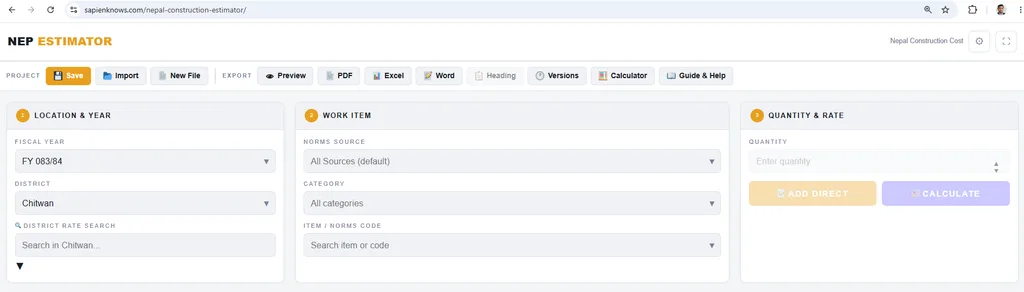
Step by Step process to Your First Estimate
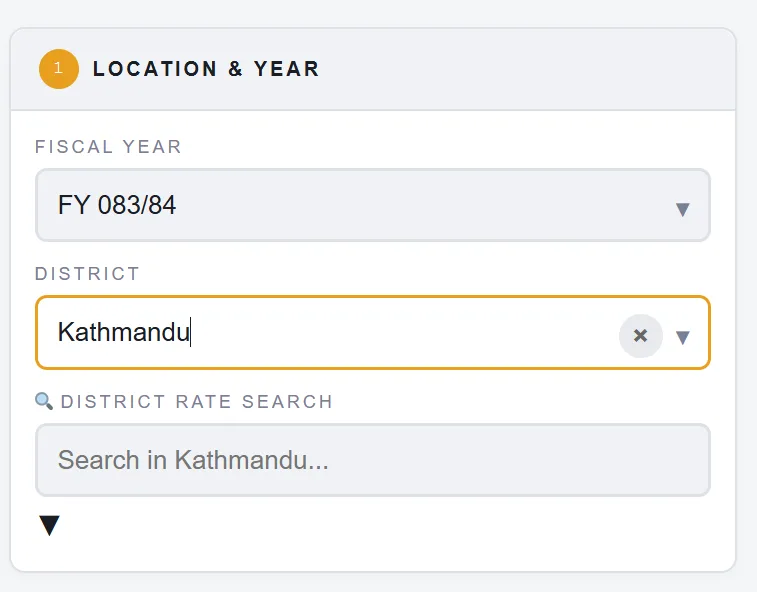
Step 1: Choose the fiscal year and district
Set the Fiscal Year and District at the top left. The District Rate Search box helps you find a district fast. Whatever you pick loads into every rate analysis item.
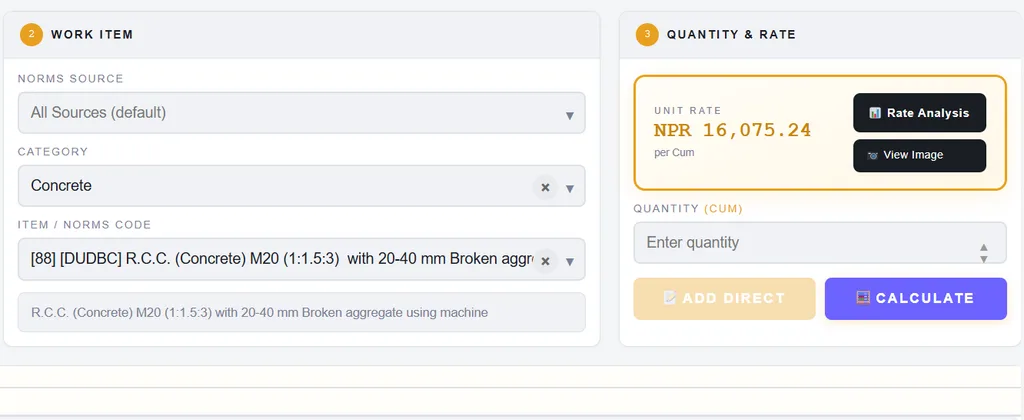
Step 2: Find the work item
Under Work Item, pick a Norms Source (like DOR or DUDBC) and a Category, then search in Item / Norms Code.
The search takes any keyword, so typing “concrete” or “painting” brings up the matching items.
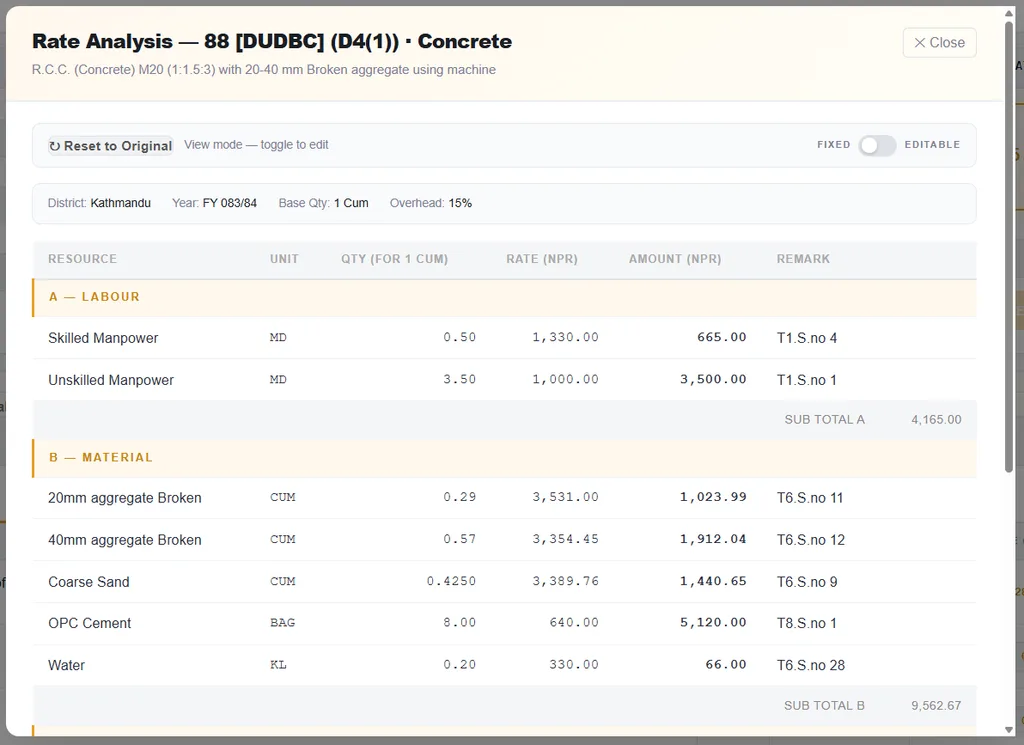
Step 3: Check the rate
The rate analysis appears under Quantity & Rate. Switch Fixed to Editable if you need to change a resource or rate, and click View Image to see the item you’re working on.
Step 4: Enter the quantity
Type the quantity, or a formula like 5*5 (which gives 25). For a detailed quantity calculation, click Calculate to open the Quantity Calculation tab. Here you can do a detailed quantity calcualtion.
When a quantity is entered in the box and ADD DIRECT button is clicked, it will be added to estimate below.
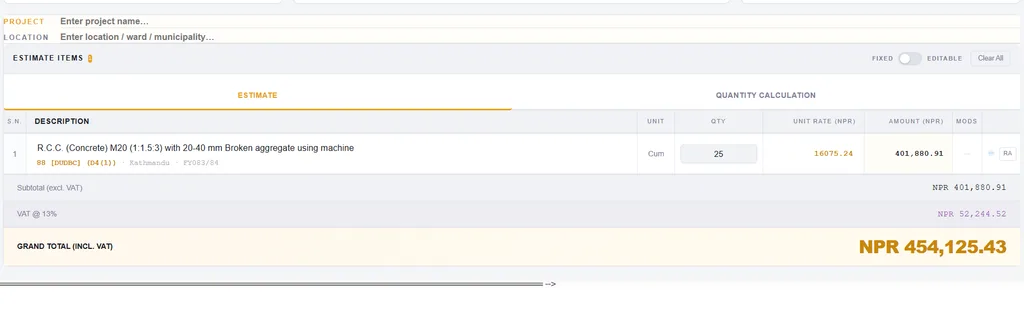
Step 5: Build and export the estimate
When you add an item, it drops into Estimate Items. Keep adding to build the estimate. A custom estimate item can also be added directly in the estimate as +Add Custom Item (manual entry).
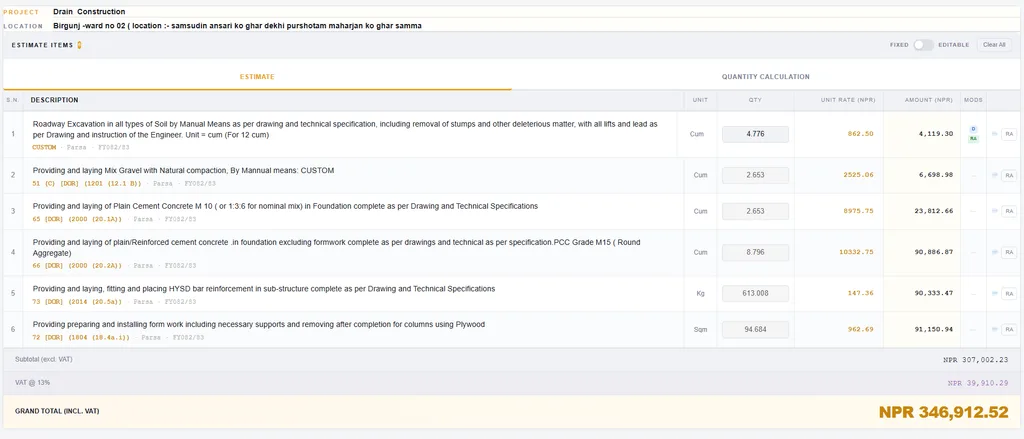
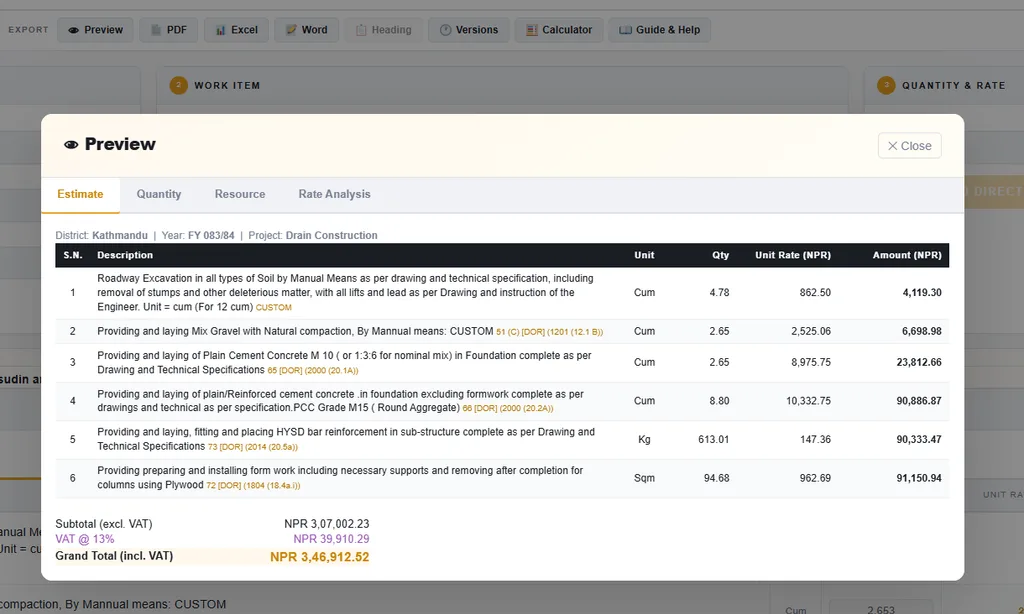
When the complete estimate is ready, use Preview and export to PDF, Excel or Word. One useful feature of this tool is that you can view the resource summary. Here a summary of the resources for example, total skilled manpower or cement from all the items of the estimate is totalled.
Rate analysis in Nep Estimator
How a rate is built: Rate analysis splits the cost of one unit of work into material, labour and equipment. Each item carries a norm, the quantity of each resource needed per unit. Each resource is priced from the district you picked.
Editing a rate analysis: Switch Fixed to Editable to change any resource or rate, or click RA on an estimate row to open and edit its full analysis. You can also load the same item under different districts to compare rates.
Checking it against the book: Every analysis shows a code reference, like 4 [DOR] (1201 (12.1 B)), so you can confirm from the official rate analysis book published by the Government of Nepal.
District rates in Nep Estimator
How district rates work: A district rate is the approved price of materials, labour and equipment for a district fixed by the District rate fixation committee. Rates differ from place to place because of transport, availability and the local market, so an estimate always starts from the right district’s list.
Each rate carries a table or serial number you can match against the district’s approved rate.
Coverage and custom rates: There are 5 districts for fiscal years 2081/82, 2082/83 and the latest 2083/84, with more being added. If your district isn’t listed, choose Custom (No District), pick any item from Item / Norms Code, and enter your own rates.
If there is a missing district rate, the rate analysis has a feature which gives a dropdown of district rate from other district. It can also be added manually using the editable feature.
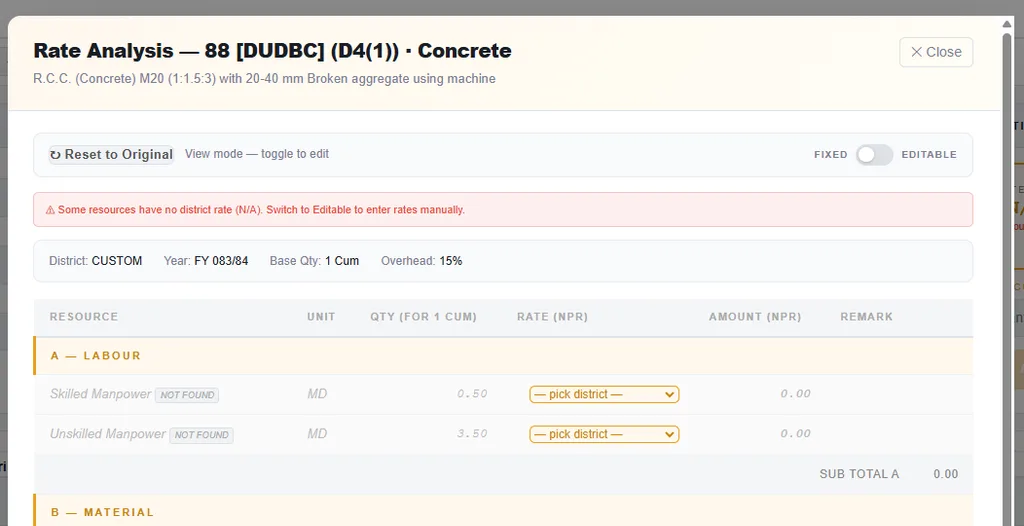
Quantity calculation in Nep Estimator
When you don’t have the quantity ready, click Calculate to open the Quantity Calculation tab and work out the take-off there. For quick sums you can also type a formula like 5*5 straight into the quantity box.
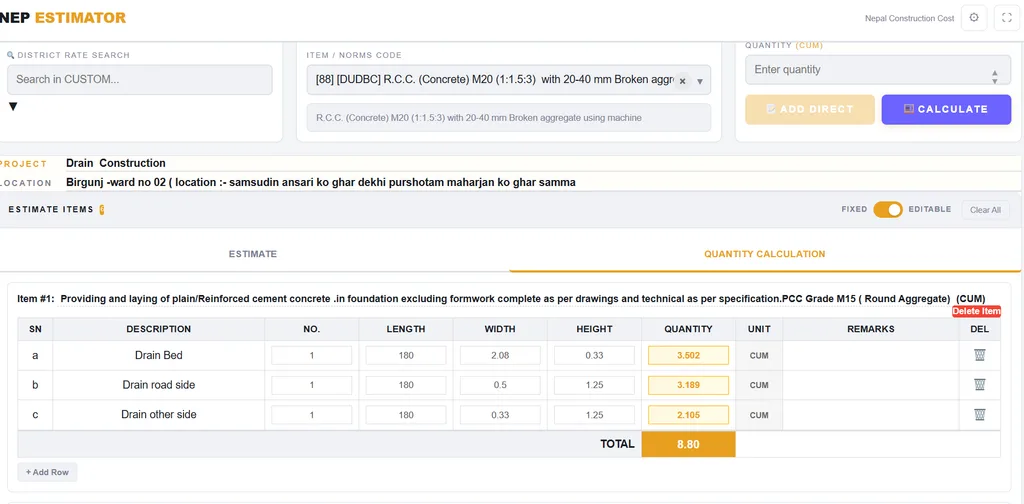
Building the estimate
Estimate items and editing: Added items sit in Estimate Items. In Editable mode you can change the description, quantity, unit rate or the rate analysis itself. The MODS tags on a row show what you changed: D for description, UR for unit rate, RA for rate analysis.
Custom items and adjustments: Add a custom item that isn’t in the database, with a unit rate you enter directly or a rate analysis you build from scratch. You can also add contingency, a discount or other adjustments after VAT.
VAT and Provisional Sum: VAT is 13% by default, and you can change it in settings or per item. If a unit is PS (Provisional Sum), VAT isn’t added again, since a provisional sum already includes it. Those rows are marked xVAT.
Reports and exports
Preview shows the Estimate, Quantity, Resource and Rate Analysis before you export. Export to PDF, Excel or Word, and add your organization Heading so it appears on top. The resource summary totals the materials, labour and equipment across the whole estimate.
Saving, sharing and versions
Save writes a .JSON file you can re-open or share, and Import opens it again. New File clears everything for a fresh start, with a warning first. Versions auto-saves every 10 minutes and lets you restore an earlier one, and your work survives a page refresh.
Is Nep Estimator accurate?
The norms and district rates come from published government references, and each item carries a code reference and table number so you can trace both the rate analysis norms and the district rate from the approved and published book. Even so, treat the output as a working estimate.
Confirm the final figures against the current official rate for your district before using them for tender or billing.
Frequently asked questions (FAQ)
Is NEP Estimator free? :Yes. It’s free to use, with ads to cover the cost of running it.
Do I need to install anything or sign up? :No. It runs in the browser, with no installation and no login.
Does it work offline? :Yes. Once it has loaded, it keeps working without an internet connection.
Which norms does it use? :DOR, DUDBC and NRA. Pick the one you’re working to under Norms Source.
Which districts and years are covered? :502 rate analysis items and district rates for 5 districts, across fiscal years 2081/82, 2082/83 and the latest 2083/84. Custom districts and items are supported too.
Can I edit a rate analysis? :Yes. Switch Fixed to Editable, or click RA on a row to edit the full analysis.
How is VAT handled? :VAT is 13% by default and can be changed in settings or per item. Provisional Sum (PS) items already include VAT, so it isn’t added again.
Can I use my own rates? :Yes. Pick Custom (No District), choose any item, and enter your own rates for any district.
Try it and get the files
Open NEP Estimator and prepare your first estimate: Nepal Construction Estimator.
Reference files and templates are in the shared Drive folder: Open the Drive folder.
A wrong rate, a missing district, or a district you’d like added? WhatsApp +977-9816231862 or Email GetBetterEveryday101@gmail.com.